
C. Shopify and ecommerce
Shopify Website Speed Optimization: Images, Apps, and Theme Choices
Improve Shopify website speed by measuring real storefront performance and prioritizing image weight, app scripts, theme code and interaction issues.
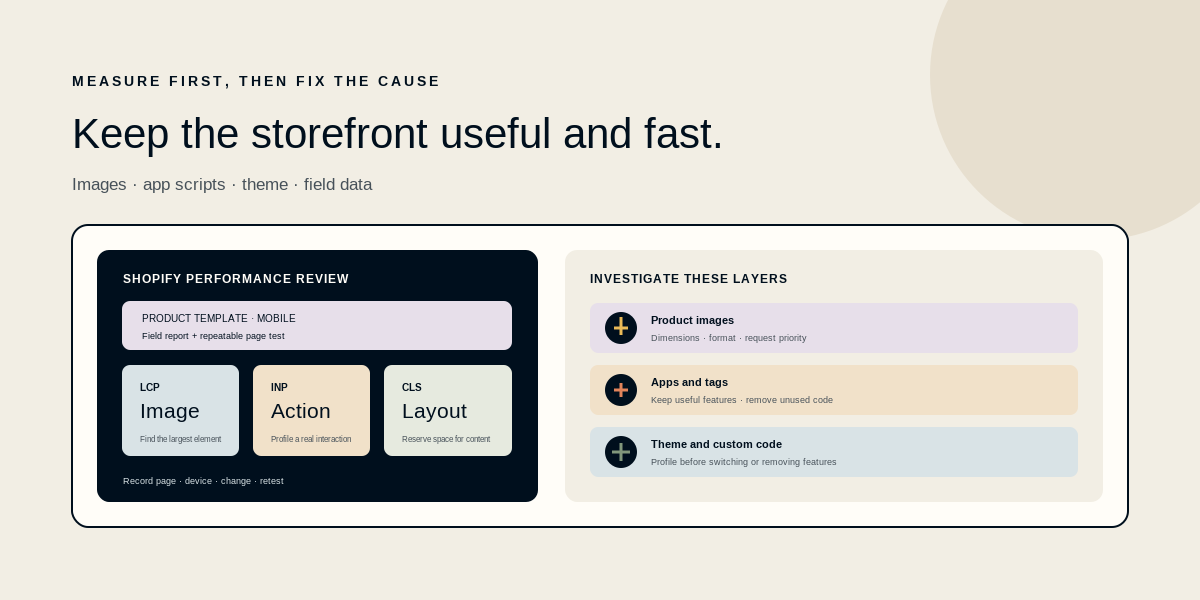
Shopify website speed optimization starts by identifying which storefront pages and customer actions are slow, then tracing the delay to images, theme code, apps or third-party services. A high score from one lab test does not explain every shopper's experience. Compare field data with repeatable page tests, change one meaningful cause at a time and confirm the feature still works after the improvement.
TL;DR
- Measure representative Shopify page types on mobile and desktop before changing the theme or apps.
- Use Shopify's performance reports and page-level tests to identify patterns in real customer experience.
- Review large images, app scripts, theme code and third-party tags as separate possible causes.
- Avoid removing useful store functionality without checking its sales role and testing the impact.
- Re-test the same pages and interactions after each material change.
Establish a useful Shopify performance baseline
Start with the store's own performance data rather than a single homepage score. Select representative product, collection and landing pages, then test the tasks customers perform on each. Compare mobile and desktop conditions and record the test date, device, network, page URL, recent theme changes and app changes.
| Evidence | What it helps answer |
|---|---|
| Shopify performance reports | How real customer experiences trend across Core Web Vitals and page types. |
| PageSpeed Insights | Which page-level loading, rendering or interaction opportunities appear in the test. |
| Browser performance trace | Which request, script, image or long task contributes to a specific delay. |
| Store change history | Whether a theme update, app install, campaign tag or custom code preceded a change. |
| Customer task replay | Whether the slower page also makes product selection or checkout difficult. |
Shopify's web performance reports use real user experience data and can be viewed by device and page type. Shopify notes that report data may be delayed, so use it alongside controlled page tests rather than expecting a change to appear immediately.
Review product and collection images at their rendered size
Large images can add substantial bytes to a storefront, especially on product and collection pages with several media items. Check whether the source is much larger than its rendered dimensions, whether the file format fits the image, and whether the page loads images customers need to see first before images lower down. Preserve enough detail for product evaluation while avoiding oversized downloads.
- Inspect the main image and first visible product cards on a representative page.
- Resize source files to practical display dimensions and use an appropriate image format.
- Keep width and height or aspect ratio information so the layout can reserve space.
- Prioritize the primary above-the-fold image and avoid delaying it behind interaction.
- Lazy-load below-the-fold media when it is safe and verify that it remains discoverable.
- Retest zoom, gallery selection and product variant image changes after optimization.
Do not replace every product image with a low-resolution thumbnail just to reduce weight. The page still needs enough visual information for customers to judge material, color and configuration. Compare the actual rendered image quality and transfer size on mobile.
Audit app scripts and third-party tags by customer value
Apps can add useful functions such as reviews, search, subscriptions, analytics or support, but their storefront scripts may load on pages where customers do not use the feature. Inventory what each app adds, which templates load it and whether the store still needs it. An uninstall may not remove all theme code or assets, so confirm cleanup with the app documentation or developer before editing production code.
| Question | Decision to record |
|---|---|
| Does the feature support a required customer task? | Keep, replace, remove or scope its display to relevant pages. |
| Where does its code load? | Record affected templates and whether loading is conditional or site-wide. |
| Does it delay first render or interaction? | Use a trace to identify the script's actual effect. |
| Can it load later or only when needed? | Confirm technical feasibility with the app or theme owner. |
| What code remains after removal? | Follow cleanup instructions and verify theme files and requests. |
Shopify's guide to improving online store performance recommends investigating apps, images and slow scripts and cautions that uninstalling an app may not remove its theme code. Test the store feature and performance impact before and after a change.
Inspect theme code without removing useful storefront behavior
Theme code, customizations and third-party scripts can affect when content renders and how quickly the page responds to input. Shopify's theme performance best practices recommend loading only what is needed and profiling JavaScript when interaction problems appear. Find the specific script, template or image causing a delay before changing the theme or replacing a feature.
- Compare the current theme with a clean preview copy where possible.
- Use browser tools to identify render-blocking resources, large requests and long main-thread tasks.
- Check whether a customization runs on every page or only where its feature is used.
- Remove duplicated code and defer non-critical work only after confirming the dependency.
- Retest menus, variant selectors, cart drawers, analytics and app features affected by the change.
A theme change is not automatically a speed fix. Compare required sections, accessible interactions, merchant editing and performance evidence before switching. If custom code must remain, record its purpose and owner so future theme updates do not reintroduce the same issue.
Prioritize Core Web Vitals and verify each change
Review loading, responsiveness and visual stability as separate user experience problems. Google's current Core Web Vitals guidance defines LCP for loading, INP for responsiveness and CLS for visual stability, with good experience targets of 2.5 seconds, 200 milliseconds and 0.1 respectively. Use field data for customer experience and lab tests to debug a page; see Google's Core Web Vitals guide.
- For slow LCP, inspect the main image, server response and resources that delay the largest visible content.
- For poor INP, profile product option changes, menus, cart actions and third-party JavaScript.
- For CLS, reserve space for images, banners, app widgets and content that loads after the initial layout.
- Repeat the same test after a change and record whether the customer task remains intact.
- Monitor field data over time; a controlled test alone cannot represent every visitor's device or network.
For a page-template-specific diagnostic checklist, see Core Web Vitals for ecommerce product pages. Peak Web Craft's Shopify website development service and SEO services can scope storefront and technical review work around agreed pages and outcomes.
Frequently asked questions
How do I improve Shopify website speed?
Measure representative pages first, then investigate large images, app and third-party scripts, theme code and layout stability. Make focused changes, preserve useful store functions and retest the same pages and customer tasks.
Do Shopify apps slow down a store?
Some apps add storefront code or external requests that can affect loading or interaction. The impact depends on the app, its implementation and where it loads, so profile the actual store before removing a feature.
Does uninstalling a Shopify app remove all its code?
Not always. Shopify notes that an app may leave code or assets in the theme after uninstalling. Follow the app's removal instructions and verify the remaining theme code and network requests.
Should I change my Shopify theme to make the store faster?
Only after identifying a theme-related cause and comparing the replacement against required sections, app compatibility, accessibility, merchant editing and customer tasks. A theme switch alone does not guarantee better performance.
Does Shopify speed optimization guarantee better search rankings?
No. Performance is one part of page experience and technical quality, but no optimization guarantees a ranking or traffic change. Measure both user experience and search outcomes after implementation.